Button Mapper: Remap your keys
- 3.4
- Rating
- 5.00M
- Installs
- Free
- Price

 Analysis by App-foxy
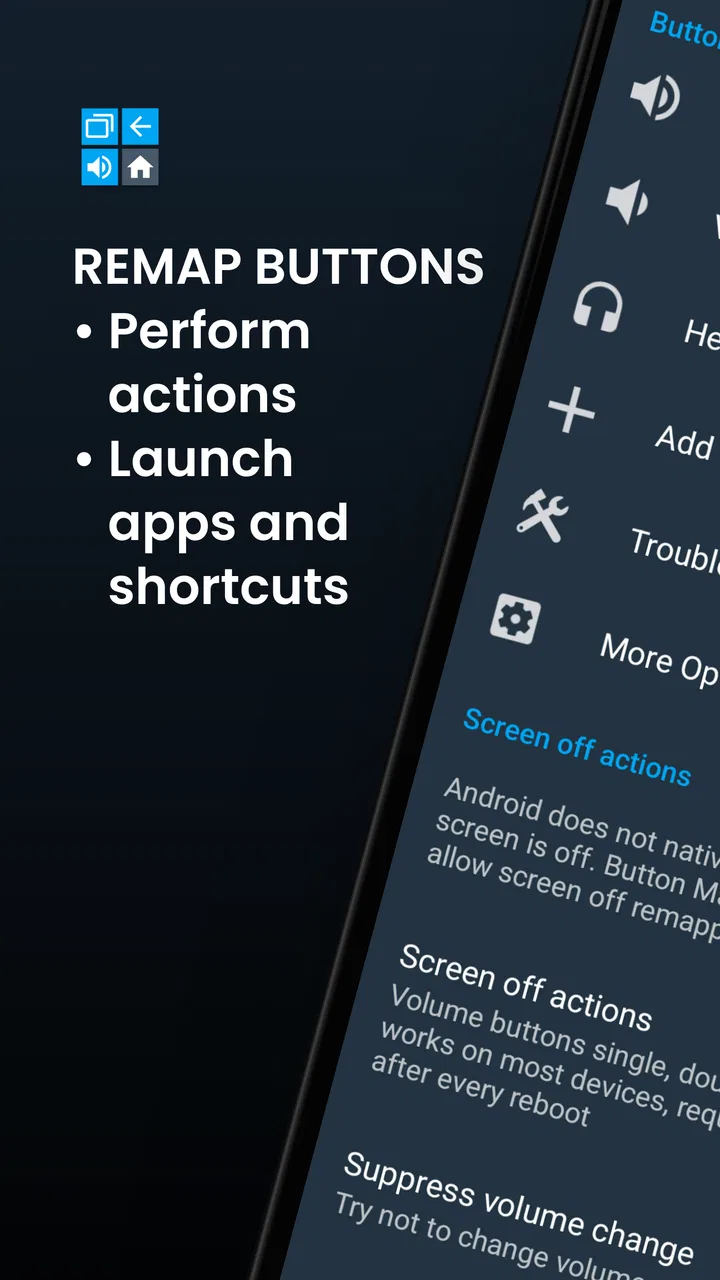
I spent time with Button Mapper: Remap your keys as a personalization app, and its appeal became clear very quickly: it lets me give Android hardware buttons jobs that the phone manufacturer may not have assigned to them. Instead of treating a volume key, home key, or other supported button as fixed, I can connect a press, double press, or long press with an app, shortcut, or system action. That sounds simple, but it changes how I reach the tools I use repeatedly every day.
The app is developed by flar2 and is free to install, with optional in-app purchases ranging from $0.99 to $24.99 per item. That makes the initial decision easy: I can test the basic experience without paying first. The important question is not whether the app is inexpensive to try, but whether its extra controls are useful enough on my particular phone to justify any paid upgrade. My answer is positive for people who enjoy customizing Android, but much more cautious for anyone expecting every button and every action to work perfectly without device-specific limits.
How Button Mapper changes everyday phone control
At its best, this app turns a physical button into a shortcut I can reach without looking at the screen. I can use a button press to open an app, trigger an available action, or make a frequent task feel more direct. The practical benefit is not flashy customization for its own sake. It is reducing the number of taps for something I already do often.
You May Also Like

 Blood Strike: 2.5 Anniversary
Blood Strike’s Loadouts Turn Every Drop Into a Tactical Gamble
A close look at Blood Strike’s custom loadouts: how fast access to signature weapons reshapes its battle royale rhythm, rewards preparation, and narrows the gap between fights.

 Pandora - Music & Podcasts
Pandora’s Music Is Easy to Start, but Harder to Recover
Pandora’s strength is its low-effort path from a seed to a station. Its weak spot is how much confidence it asks you to place in connection, setup, and quiet recovery.

 8 Ball Pool
 Is Built on Rivalries, Rematches, and Routine
A close look at the rivalries, rematches, shared routines, and unanswered safety questions that turn a quick pool match into a persistent mobile community.

 Samsung Music
’s Quiet Strength Is Playing What You Already Own
Its reach comes less from spectacle than from dependable access to a personal library. That simplicity is both the app’s strongest retention engine and its ceiling.

 AccuWeather: Weather Radar
AccuWeather Review: A Quick, Clear Forecast for Everyday Decisions
For everyday plans, the best forecast is the one you can understand quickly. AccuWeather makes rain timing, radar, and local conditions easy to act on, with a few trade-offs.

 Hill Climb Racing
Why Hill Climb Racing Still Turns Crashes Into One More Run
A tiny car, a bumpy hill and one more upgrade: Hill Climb Racing keeps resurfacing because its simple chaos makes every near-miss feel personal.
More From Our News Desk



A realistic example is my morning routine. If I regularly open a notes app, start a timer, or launch a camera, assigning one of those tasks to a button can save several steps while I am carrying the phone or moving around the kitchen. The same idea works for a music app during a commute, a flashlight when I need quick light, or a favorite utility that I normally have to find through the launcher. The best assignment is the one I use almost automatically.
The app is especially interesting because it does not limit me to launching applications. Its store summary describes support for apps, shortcuts, and actions, and that distinction matters. An app launch is obvious, but a shortcut can take me closer to a particular function inside an app, while an action can make a system-level command more accessible. The exact possibilities depend on the phone and Android setup, so I treat the configuration screen as a menu to explore rather than assuming every listed action will behave identically everywhere.
I also like the idea of separating simple and deliberate gestures. A single press should usually remain close to the phone’s normal behavior, while a double press or long press can carry the custom command. That arrangement reduces accidental triggers and lets one physical control serve more than one purpose. It does require discipline, though. If I assign too many functions to the same button, I can spend more time remembering gestures than I save in daily use.
Testing the right button before building a setup
My first recommendation is to start with one button and one action. I would not immediately remap every available control. A single change makes it easier to notice whether the phone still behaves naturally, whether the action triggers reliably, and whether the new shortcut conflicts with the original function.
Volume buttons are a good place to experiment because they are easy to reach, but they are also easy to press accidentally. A command that changes something important should not be attached to a gesture I commonly perform while holding the phone. A long press is often safer for a less frequent action, while a double press can work well for something I want quickly but not constantly.
There is also a useful trade-off between speed and discoverability. A home-screen icon explains itself; a button gesture does not. After a few days, a well-chosen mapping becomes muscle memory, but during the learning period I may forget which gesture opens which tool. I get better results when I write down my chosen mappings briefly or keep the setup simple enough to remember without notes.
Why device behavior matters more than the app description
Button Mapper is not operating in a vacuum. Android manufacturers assign their own behavior to physical keys, and some devices treat certain buttons as special or protected. That means the same configuration can feel excellent on one phone and limited on another. I would judge the app by what it can reliably do on my device, not by the most ambitious setup I can imagine.
This is one of the main reasons the free entry point is valuable. I can install it, try the button I care about, and see whether the action fits my routine before spending anything. If the phone blocks an important behavior or the remapped gesture feels inconsistent, paying for more customization would not solve the underlying mismatch.
Another practical point is that a remapped key may still have a built-in role that I depend on. I need to think about what I am giving up, not just what I am gaining. A volume control is useful because it is predictable. Turning it into a shortcut can be worthwhile, but only if I still have a comfortable way to adjust sound and do not constantly trigger the new command by mistake.
Free access, paid value, and what I would pay for
The app is free, so there is no purchase barrier to basic evaluation. Optional purchases sit between $0.99 and $24.99 per item, which is a broad range rather than a single upgrade price. I would therefore avoid assuming that every user needs the highest-priced option. The sensible approach is to identify the exact feature or level of customization I want and decide whether that specific improvement solves a real problem.
For me, paid value would come from dependable access to the controls I use every day, not from collecting mappings I rarely touch. If the free experience already handles my main shortcut, I would see little reason to pay merely for a longer list of theoretical possibilities. If a paid option unlocks a function that replaces repeated navigation several times a day, the value becomes easier to understand.
I also appreciate that the app’s pricing does not force me to commit before I know whether my phone cooperates. That is important for a tool tied so closely to hardware behavior. I would test the most important button first, then live with the mapping for a few days. A shortcut can feel exciting during setup and still prove unnecessary once the novelty fades.
Small workflows that make the app more useful
One non-obvious use is to reserve a gesture for an action that is valuable when the screen is busy. If I am holding a recipe, carrying a bag, or moving between rooms, a physical shortcut can be more convenient than navigating menus. The benefit is strongest for tasks that are safe to trigger quickly and easy to undo.
A second useful approach is assigning different gestures according to urgency. I might use a double press for a frequent but harmless app launch, then keep a long press for a less common action that I never want to activate accidentally. This turns the button into a small hierarchy of controls instead of a single replacement for its original job.
A third insight is that remapping works best when it complements, rather than duplicates, the launcher. If I assign a button to an app already sitting on my dock, the gain may be minor. If I use it for a buried shortcut or a task that normally requires several screens, the improvement is much more noticeable. I would compare each proposed mapping with the fastest existing route before keeping it.
There is a fourth trade-off worth considering: consistency across phones. A button-based habit can become very comfortable, but it may not transfer neatly when I change devices or use someone else’s phone. I would treat the setup as a personal layer, not as a universal Android convention. That matters if I often switch between work and personal devices.
Where the friction appears
The biggest limitation is that customization does not guarantee complete control over the hardware. Manufacturer behavior, Android restrictions, and the original purpose of a button can all affect the result. I may find that a mapping works only for certain gestures, behaves differently when the phone is locked, or cannot replace a protected function in the way I expected. Those are not reasons to dismiss the app, but they are reasons to test carefully.
There is also a learning cost. The more mappings I create, the more likely I am to forget them or trigger one unintentionally. A complicated configuration can make the phone feel less predictable, which defeats the convenience I wanted. I prefer a small set of deliberate shortcuts over a complete redesign of every button.
Another weakness is that the usefulness depends heavily on personal habits. Someone who rarely uses physical keys may gain almost nothing. Someone who already has a fast launcher, gesture navigation, or manufacturer shortcuts may find that Button Mapper adds another layer without improving the routine. In that situation, the usual alternative is better simply because it keeps the controls visible and familiar.
I would also be careful before assigning actions that could interrupt something important. A shortcut that opens an app is easy to understand, but a system action may have consequences I do not want to trigger while the phone is in my pocket. I would reserve the most sensitive command for a deliberate gesture and test it in ordinary conditions rather than only from the settings screen.
Who should install it
This app is a strong match for Android users who repeatedly reach for the same tools and want a physical shortcut. It is particularly appealing if I have a button that feels underused, a manufacturer layout that does not suit my habits, or a task that is awkward to reach through the screen. People who enjoy fine-tuning their phones will likely appreciate the control more than casual users.
It can also help users who prefer fewer on-screen steps. I do not need to redesign the entire interface to benefit. One reliable mapping for a timer, camera, music app, note-taking tool, or other frequent destination may be enough to justify keeping it installed.
I would skip it if I want a completely uniform experience across devices, dislike remembering gestures, or depend on every physical button retaining its factory role. I would also skip the paid options until the free testing period proves that the remapping is stable and genuinely useful on my phone. A different launcher or the manufacturer’s own shortcut system is a better choice when visible, consistent navigation matters more than hardware customization.
The app has an Everyone content rating, which fits its straightforward purpose, and it has been available since October 22, 2016. Its long presence and broad reach are useful context, but they do not replace personal testing. It has over five million installs, around twenty thousand ratings, and a 3.5 average, so the overall reception suggests real interest alongside a noticeable range of experiences. I read that as a reminder that device compatibility and expectations matter here.
My buy-or-skip verdict
I recommend trying Button Mapper if I can name one repeated task that would be easier with a physical shortcut. The free installation makes that experiment low risk, and the app can deliver a meaningful improvement without changing the whole phone. My preferred setup would be modest: one or two mappings, carefully chosen gestures, and the original button behavior preserved wherever I still need it.
I would not buy an optional upgrade merely because more customization sounds attractive. I would pay only after confirming that the extra value removes a real daily annoyance and works reliably on my device. The upper end of the in-app purchase range makes that distinction especially important; the right purchase depends on the specific benefit, not on the existence of advanced controls alone.
My final opinion is favorable but practical. This is not a universal replacement for Android navigation, and it cannot erase the limits imposed by every phone’s hardware and software. What it does well is give thoughtful users a faster, more personal way to reach selected apps, shortcuts, and actions. If one physical button can save me repeated screen navigation every day, Button Mapper earns its place; if I cannot identify that routine, I would skip it.
FAQs for Button Mapper: Remap your keys
01What is Button Mapper and how does it work?
Button Mapper is an app that allows you to customize the function of your device's hardware buttons. By remapping keys such as volume buttons, home button, or the Bixby button, you can quickly access apps, toggle settings, or perform various actions seamlessly. It requires accessibility permissions to function properly, ensuring you have control over your device's hardware keys.
02Is Button Mapper safe to use on my device?
Yes, Button Mapper is generally safe to use. It requires certain permissions to operate effectively, such as accessibility and overlay permissions. These are needed to intercept button presses and assign new actions. Always download the app from reputable sources like Google Play Store to ensure its authenticity and security.
03Does Button Mapper require root access to function?
No, Button Mapper does not require root access for most of its features. However, some advanced functions may need root access to work correctly, such as remapping the power button or certain system-level commands. For most users, the app will work effectively without rooting their device.
04Can Button Mapper affect my device's performance or battery life?
Button Mapper is designed to be lightweight and efficient, but it could potentially have a minor impact on battery life due to running in the background. However, this is typically minimal and unlikely to noticeably affect overall performance. It's always a good idea to monitor any app's impact on your device's resources.
05What customization options are available in Button Mapper?
Button Mapper provides a wide array of customization options, allowing you to assign different actions to hardware buttons. You can set single, double, and long press actions to launch apps, toggle settings like Wi-Fi or Bluetooth, take screenshots, and more. The app supports both basic and advanced remapping, providing flexibility for various user needs.
Pros
- Customizes physical buttons easily.
- Enhances device accessibility.
- Supports a wide range of actions.
- No root required for basic functions.
- User-friendly interface.
Cons
- Limited functions without payment.
- May drain battery faster.
- Ads in free version.
- Some features require root.
- Occasional lag in response.

Button Mapper: Remap your keys
Gallery